
Playground Basketball Green Sounds: Audio Options and Setup Guide
Playground Basketball green sounds play custom audio cues whenever you time a perfect release on your shot. You can select basic sounds directly from the in-game settings menu or expand your library by purchasing the Additional Green Sounds pass for 149 Robux.
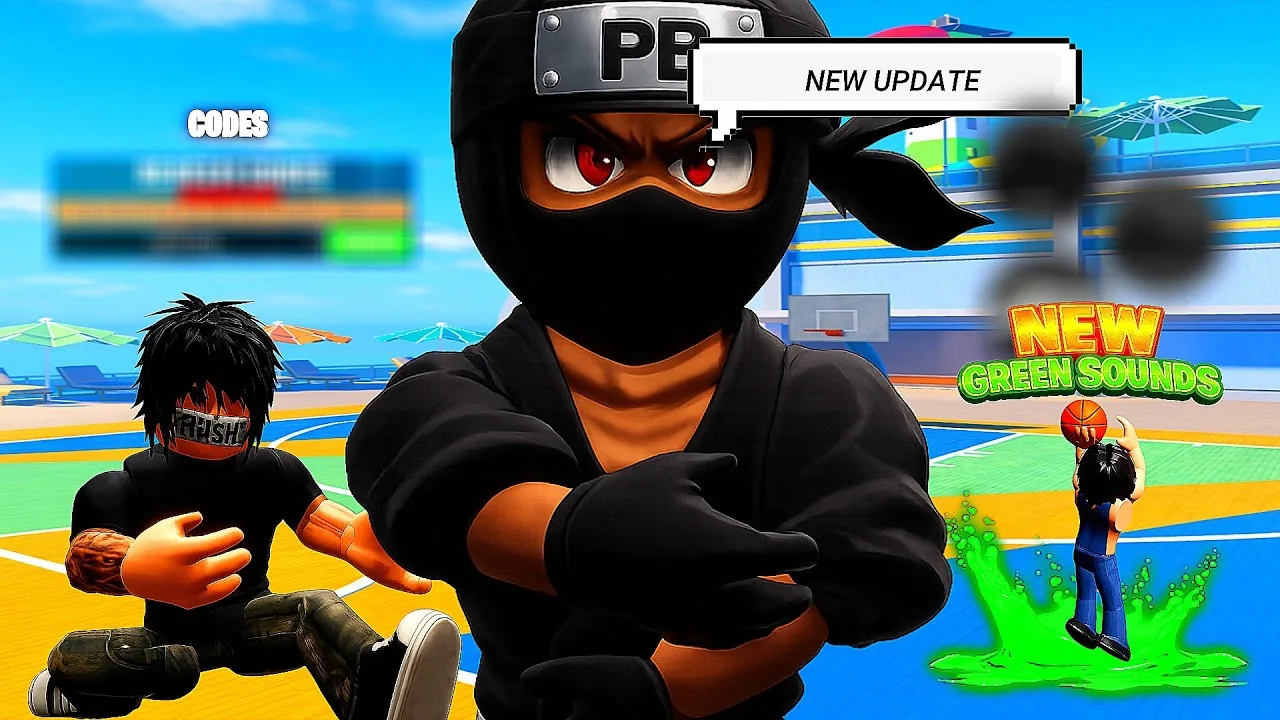
Playground Basketball green sounds play custom audio cues whenever you time a perfect release on your shot. You can select basic sounds directly from the in-game settings menu or expand your library by purchasing the Additional Green Sounds pass for 149 Robux.
Available Green Sounds and Release Audio
Green sounds trigger whenever a shooter releases the basketball within the perfect timing window. In Playground Basketball, pairing your audio cues with consistent visual timing helps confirm made baskets before the ball reaches the net. Content creator videos show multiple selectable audio effects present across game updates.
In his settings showcase video, player Rum demonstrates equipping the Fireworks sound to provide an explosive audio cue on green releases. Across earlier gameplay sessions, Rum highlights using Green Light as a clean audio confirmation on catch-and-shoot jumpers. When testing update content, creator North showcases several newer green sounds added to the rotation, specifically identifying Irish Spring Light, Iconic Surprise, and Splash.
Shot timing often connects directly with chosen shot mechanics. Players pairing their audio cue with a reliable best jumpshot such as Basic 1 or Pro 1 use the audio hit to instantly know whether an off-dribble fade or spot-up three was timed correctly.
How to Equip Green Sounds in Settings
Equipping and modifying your shot audio takes place inside the main gameplay options menu. The developer notes on the official Roblox store page confirm the basic activation flow for all green sound options:
- Open the game menu and select the Settings tab.
- Locate the audio options section and click on Green Sound.
- Cycle through your unlocked sounds and select your preferred audio effect.
- Confirm your choice and save your settings before stepping onto the court.
Video tests show that players should also configure their visual shot feedback alongside audio settings. Setting Shot Feedback to On displays your contest percentage and timing grade immediately after shooting. Players who record clips or prefer focused sound effects can also lower background music volume to zero within the sound settings menu to keep shot releases clear.
Additional Green Sounds Gamepass Details
While baseline options are accessible through the settings menu, extra sounds are locked behind paid access. The Additional Green Sounds gamepass is sold on the official Roblox game page for 149 Robux. The pass description states that purchasing it grants access to an expanded collection of green sounds, which appear in the standard Settings menu under the Green Sound tab after purchase.
The game features several other cosmetic and progression upgrades in its store roster. Comparing the audio pass against other purchasable gamepasses helps players prioritize where to spend their Robux. While bundles such as Tubey or Ninja provide mascot outfits and a VFX pack, Additional Green Sounds focuses exclusively on audio feedback for scoring.
Choosing Shot Feedback and Audio Options
Selecting the right balance between audio feedback, visual cues, and cosmetic animations depends on your court preferences.
| Audio Setup Option | Best For | Requirement |
|---|---|---|
| Default Green Sounds | Clean audio confirmation on greens without spending Robux | Base game settings access |
| Additional Green Sounds Pass | Collecting unique sound effects like Irish Spring Light and Splash | 149 Robux gamepass |
| Green Sound and Shot Feedback On | Tracking exact contest levels while listening for release confirmation | Base game settings configuration |
Pairing your favorite audio cue with premium cosmetic packages and court items from the best animations selection allows you to fully customize how your player looks and sounds during park streaks. Testing different combinations in quick play or 1v1 matchmaking confirms whether your audio cues register clearly during fast-paced possessions.